Plugin Details
Home / Plug-in market / Back to Top


Back to Top
A floating "back to top" button fades in after scrolling: one click smooth-scrolls to the top, with an optional scroll-progress ring and full control over position, size, shape, colours, icon and label. Can be enabled separately for the shop and the admin.
View more
0 Downloads
171 Views
2026-10-08 Last Update
$0.74
$1.46
One-time purchase for lifetime use, with 1 months of technical support included

Plugin Purchase Process
1
Access your BeikeShop admin dashboard
2
Click on "Plugin Marketing" in the top right corner
3
Select the desired plugin for purchase
4
Click on Purchase
Plugin Description
Back to Top
When the page scrolls to a certain distance, a floating button fades in from one of the corners; clicking it smoothly returns the view to the top of the page.
##function
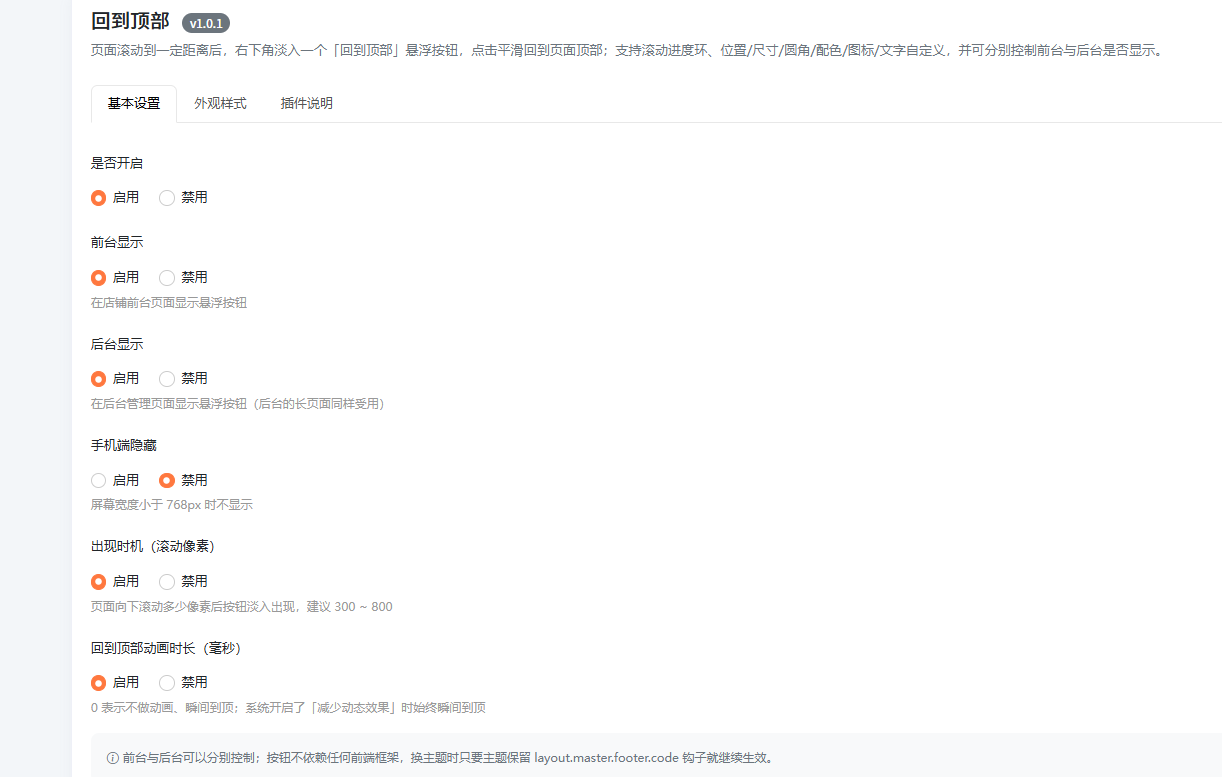
- Appears on scroll: By default, it fades in after scrolling down 400 px; the appearance threshold is adjustable.
- Smoothly return to top: Animation duration is adjustable (default: 450 ms); the animation will jump directly to the top when set to 0 or when the system has enabled "Reduce motion effects."
- Scroll Progress Ring (Optional): The outer ring of the button displays the current reading progress; it closes precisely when scrolled to the bottom of the page. Enabled by default.
- Separate activation of front-end and back-end: inject a theme footer hook in the front-end and a backend footer hook in the back-end, ensuring that the two sides do not interfere with each other.
- Fully customizable appearance: bottom-left / bottom-right, horizontal and bottom margins, size, shape (round / rounded-square / square), background color, icon color, and 4 icon variants.
- Optional "Icon + Text" capsule: When enabled, customizable text (up to 20 characters) will be displayed next to the icon.
- Hidden on mobile devices: Not displayed when the screen width is less than 768px.
- Real-time page preview: Changes to colors, dimensions, corner radii, and text are instantly reflected in the preview button.
##make use of
- In the backend, go to "Plugins → Back to Top → Install → Enable".
- Click "Edit", then in "Basic Settings" configure whether the widget appears in the foreground or background, its appearance timing, animation duration, and whether it should be hidden on mobile devices.
- In the "Appearance" section, you can adjust icons, size, shape, position, padding, and color schemes; the preview on the right updates in real time (changes to icons and display toggles take effect only after saving).
- After saving, scroll down any long page in the frontend or backend, and you will see the button.